

Native Styles & Presets Guide
Presets in Cubic Carousel allow merchants and agencies to apply cohesive, high-converting styling across all recommendation widgets in seconds — natively inside the Shopify Theme Editor.
1. 100% Native Theme Extension Architecture
Section titled “1. 100% Native Theme Extension Architecture”Cubic Carousel operates completely client-side via native Shopify Theme App Extensions:
- Modular Presets Engine: Powered by
carousel-presets.jsloaded as a theme asset, delivering instant style resolution with 0ms backend latency and 0.00 Cumulative Layout Shift (CLS). - No Metafield Syncing: Decommissioned legacy admin dashboard preset syncing and metafield dependencies. Settings apply immediately inside the Shopify Theme Editor preview and storefront.
- Storefront Autonomy: Your store never makes third-party API calls just to render widget styles or presets.
2. Built-in Designer Presets
Section titled “2. Built-in Designer Presets”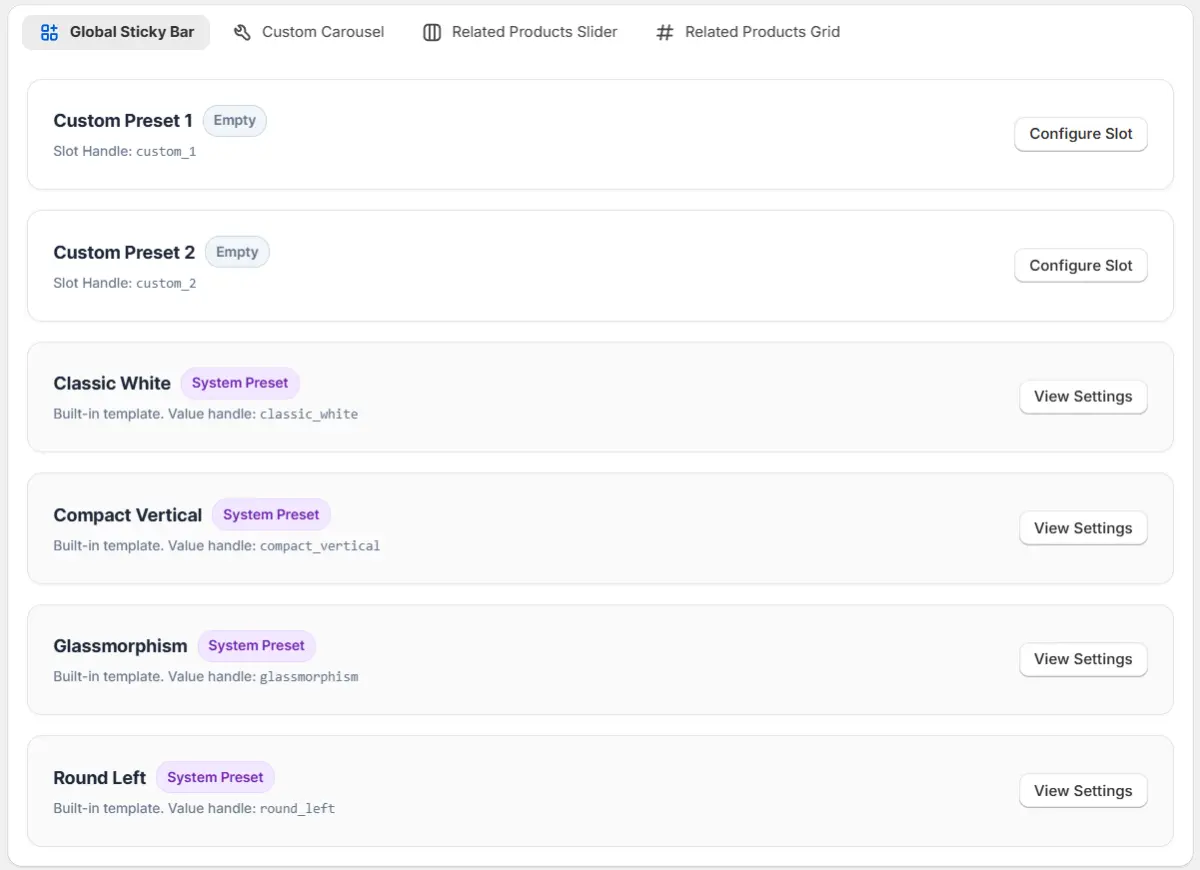
Each widget modality includes 4 curated, ready-to-use style presets:
- Preset 1: Clean, crisp modern styling with high-contrast typography and subtle borders.
- Preset 2: Minimalist dark aesthetic with deep backgrounds and accent buttons.
- Preset 3: Warm, boutique styling featuring rounded pill badges and vibrant callouts.
- Preset 4: Fresh, contemporary storefront styling with teal/emerald accents.
To switch presets:
- Open the Shopify Theme Customizer.
- Select your installed carousel block (e.g., Related Products Slider, Related Products Grid, Global Sticky Bar, or Custom Carousel).
- Under the Style Preset dropdown, choose any preset from Preset 1 to Preset 4.
- The theme customizer preview updates instantly.
3. “Full Control” Mode & Direct JSON Override
Section titled “3. “Full Control” Mode & Direct JSON Override”Need pixel-perfect customization or want to transfer themes across stores? Select Full Control (Customize All Settings) from the Style Preset dropdown.
When Full Control is active, you can either adjust every sidebar slider, color picker, and layout toggle manually, or use the Preset JSON Code (preset_json) field:
-
Activate Full Control
In the block settings sidebar, set Style Preset to Full Control (Customize All Settings).
-
Paste Preset JSON Code
Scroll to the Preset JSON Code textarea field and paste your raw configuration JSON. For example:
{"title_color": "#1e293b","price_text_color": "#5ca300","price_bg_color": "rgba(92, 163, 0, 0.08)","cta_bg_color": "#2271b1","cta_text_color": "#ffffff","price_cta_layout": "side_by_side","card_bg_color": "#ffffff","heading_color": "#1e293b"} -
Instant Resolution
The widget resolves your JSON overrides on the fly client-side.
-
Share Across Stores & Themes
Agencies and multi-brand merchants can simply copy JSON blocks from staging to production stores without re-configuring 30+ sidebar controls manually.
4. Online Preset Library
Section titled “4. Online Preset Library”Looking for inspiration? Every widget in the Shopify Theme Editor includes a direct shortcut link: